GUIDE 4 · SETTINGS
A tour of the Settings page
Most people never need to change anything here. This guide explains each part, so you know what it does if you do.
About 5 minutes
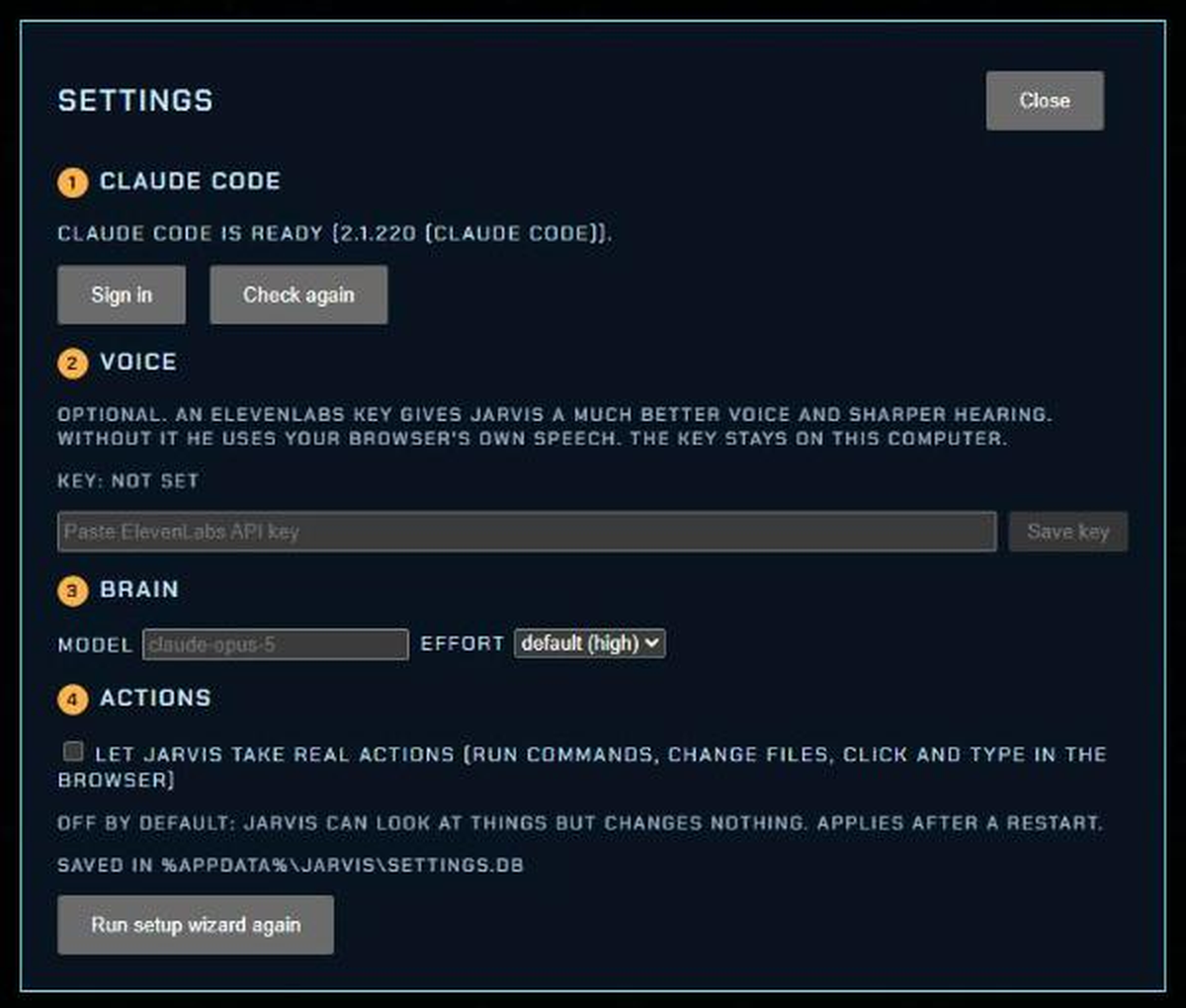
To open Settings, click the SETTINGS button at the top of the JARVIS screen.
Keys: where they go
A key is a long password that lets JARVIS use another service. JARVIS has one place for keys: Settings → Voice for the optional ElevenLabs key. Your Claude login is handled by the sign-in button, not a key.
The “Test key” button
After you paste a key, click Test key. JARVIS checks it straight away. It says Key works when all is good. Any other message means the key was copied wrongly or has been deleted. Paste it again.
Screenshot placeholder
The Test key button next to the key box, showing the message Key works.
Model and effort
- Model is which Claude does the thinking. A bigger model is smarter but slower and uses more of your plan.
- Effort is how hard it thinks before it answers. Low is quick. High is careful but slower.
Changes to these two take effect the next time you start JARVIS.

Voice
Here you add or remove your ElevenLabs key. Without a key JARVIS uses your browser's voice. With a key it sounds much more natural, and it also hears you more accurately. See how to get a voice key.
“Let JARVIS take real actions”
This tick box decides whether JARVIS can do things on your computer, such as open programs, change files or run commands. With it off, JARVIS can still talk, search and answer questions. It just cannot change anything.

Memory and privacy
JARVIS can remember things you tell it, such as your name. Your settings and keys are stored on your PC in this folder. Memories are kept next to it, in %LOCALAPPDATA%\JARVIS\memory:
%APPDATA%\JARVISTo open it, press Windows + R, paste the line above, and press Enter. Deleting those folders erases everything JARVIS saved.