GUIDE 1 · INSTALL
Install JARVIS on Windows
Eight small steps. Each step is one thing to do. Take your time. You cannot break anything.
About 10 minutes · Windows 10 or 11
Video coming soon
Install JARVIS in under 5 minutes
Step 1 of 8 · Download the installer
Step 1: Download the installer
Go to the download page and click the big button called Download JARVIS for Windows. Or paste this web address into your browser:
https://github.com/dhananjay09892/JARVIS/releases/latest/download/JARVIS-Setup.exeA file called
JARVIS-Setup.exeis saved to your Downloads folder.Screenshot placeholder
The browser's download panel showing JARVIS-Setup.exe finished downloading.
TODO: Chrome or Edge download panel with JARVIS-Setup.exe. Step 2: Run the installer
Open your Downloads folder and double-click
JARVIS-Setup.exe. Or click the file in your browser's download list.Click “More info”
Screenshot placeholder
The blue Windows protected your PC box with the More info link highlighted.
TODO: SmartScreen box before clicking More info. Then click “Run anyway”
Screenshot placeholder
The Windows protected your PC box with the Run anyway button highlighted.
TODO: SmartScreen box after clicking More info. JARVIS installs just for you, so Windows will not ask for an administrator password.
Step 3: Click Next, Install, Finish
The installer is a small window with buttons at the bottom. You only need to:
- On the license screen, choose I accept the agreement and click Next.
- Leave the install folder as it is, and click Next again.
- Keep Create a desktop shortcut ticked. This makes JARVIS easy to find. Click Next.
- Click Install and wait. JARVIS is a big program, so it can take a minute or two.
- Leave Start JARVIS now ticked and click Finish. JARVIS opens by itself.
Screenshot placeholder
The JARVIS installer window on its final Finish screen.
TODO: Installer window: the Install and Finish screens. Step 4: Open JARVIS
If JARVIS did not open by itself, find the JARVIS icon on your Desktop and double-click it. JARVIS opens in its own window, using Chrome or Edge behind the scenes. That is normal. It may take a few seconds the first time.
Screenshot placeholder
The JARVIS icon on the Windows desktop.
TODO: Desktop with the JARVIS icon. Step 5: Sign in to Claude
On first start, JARVIS shows a short welcome window. Under 1 · Claude Code, click Sign in. A Claude page opens in your browser. Log in there and allow access, then go back to JARVIS and click Check again. It should say Claude is ready. Click Next.
JARVIS uses your own Claude login, so there is no key to copy. Usage is billed to your Claude account. Need an account first? See how to get Claude and sign in.
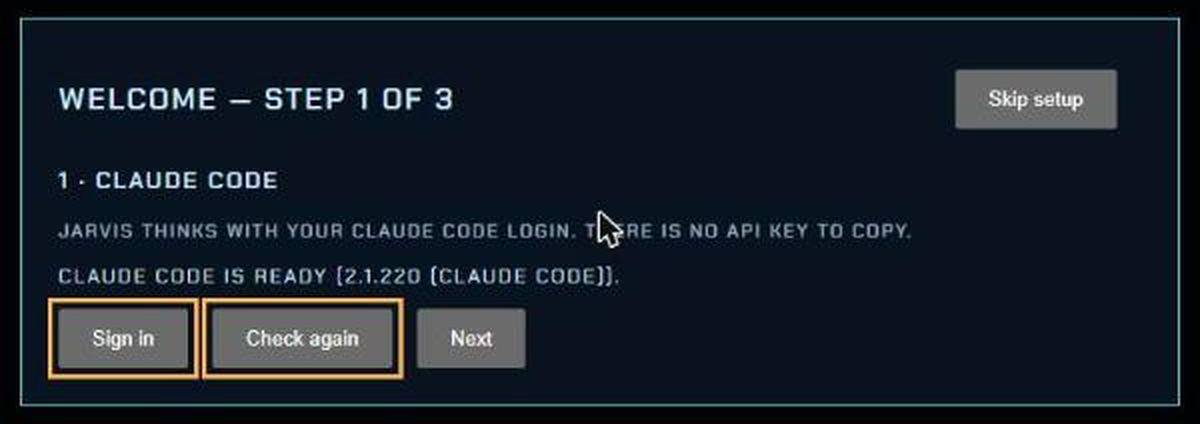
JARVIS welcome window, Claude sign-in step. Step 6: Add a voice key
Want it now? Follow the voice key guide, paste the key, and click Save key. Otherwise click Skip. You can add it later under Settings. On the last screen, click Finish.
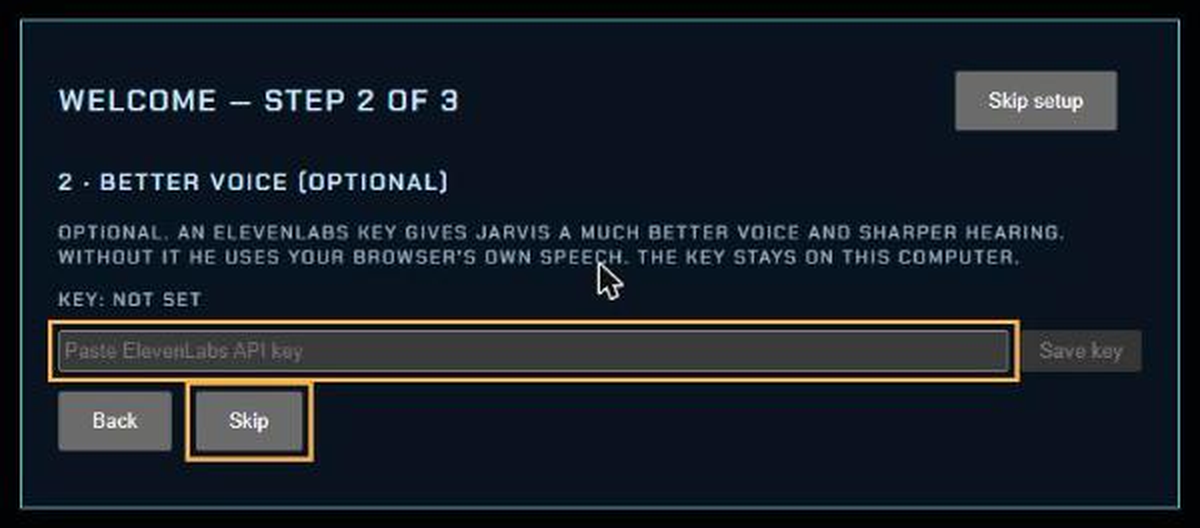
Welcome window, optional voice key step. Step 7: Allow the microphone
Click INITIALISE on the JARVIS screen. JARVIS needs to hear you, so the window asks for permission: Use your microphone? Click Allow.
Screenshot placeholder
The microphone permission pop-up with the Allow button highlighted.
TODO: Microphone permission pop-up. Step 8: Say “Hey Jarvis”
Say “Hey Jarvis” out loud, then ask something. For example: “What can you do?” The circle on screen lights up while he listens, and he answers.
Screenshot placeholder
The JARVIS screen with the glowing circle lit up while listening.
TODO: JARVIS listening after “Hey Jarvis”.
It worked!
Tick each box to check that everything is set up:
All ticked? You're done. Something not ticked? See Troubleshooting.